



































Accessing PowerSchool Forms Through the Parent Dashboard
Step 1
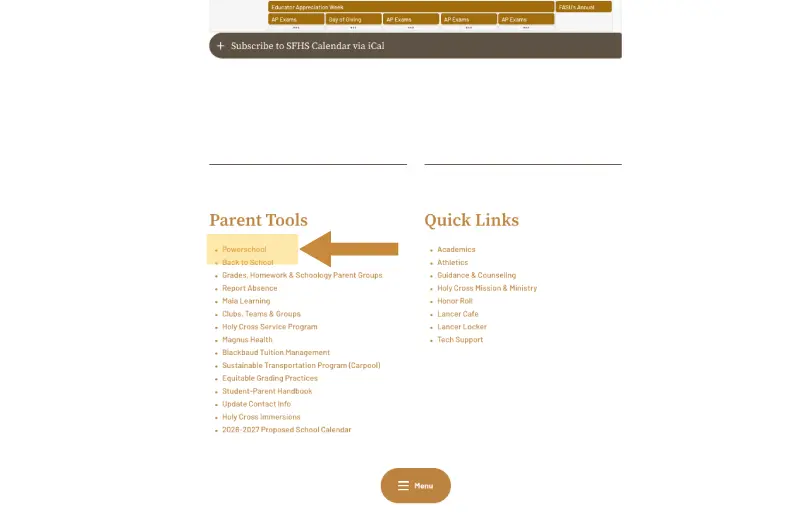
Visit the parent dashboard. Under "Parent Tools" click on "PowerSchool". This will lead you to the PowerSchool sign in screen.
If you are experiencing issues logging in to the parent dashboard, please visit the website access page for additional instructions.
Step 2
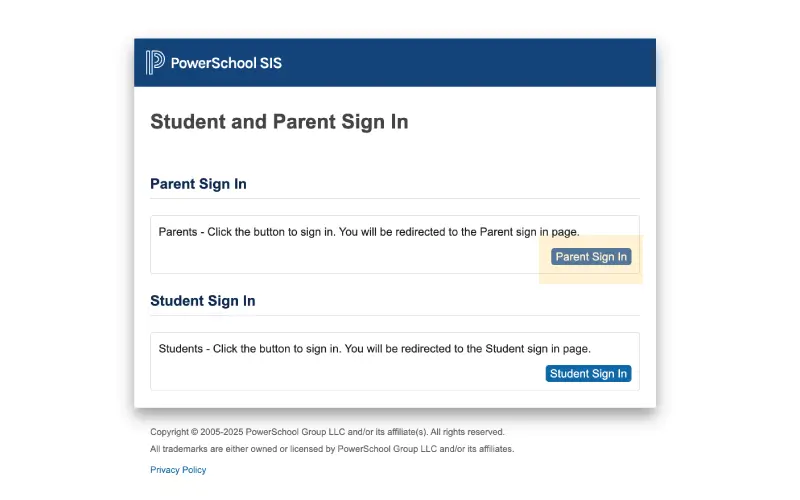
Click on the "Parent Sign In" button located within the "Parent Sign In" section.
Step 3
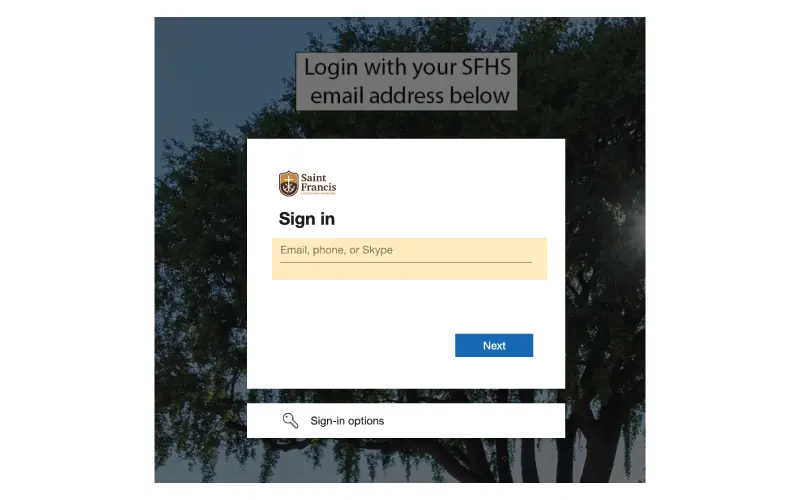
Enter your email that you registered with Saint Francis.
- Contact the Technology Office if you are experiencing issues accessing your PowerSchool account.
Step 4
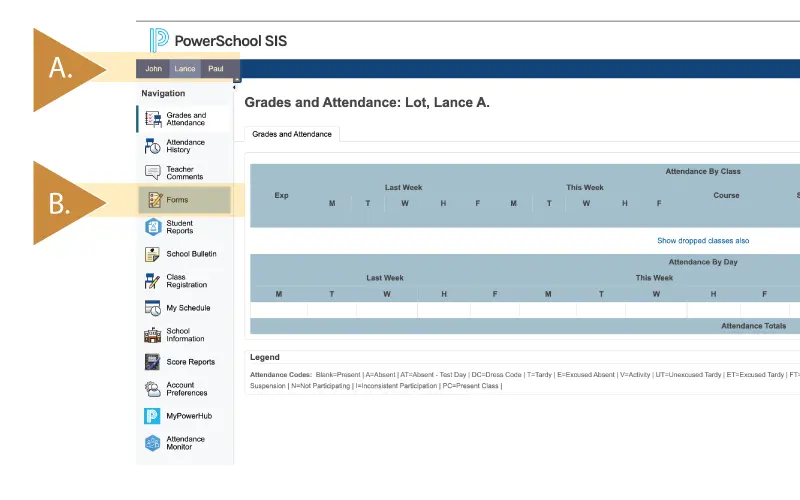
Once inside your Parent Portal, you may:
A. switch between each of your student(s) by clicking on their names at the top left hand corner.
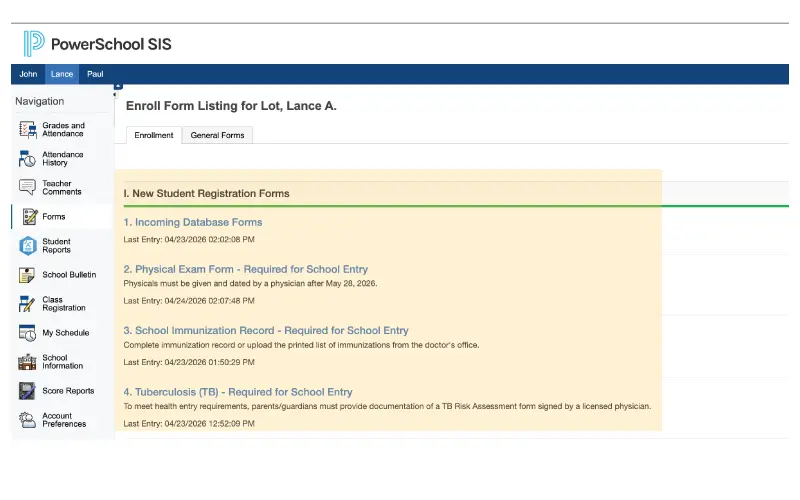
B.Select the "Forms" link from the left-hand Navigation bar. Forms to be completed will appear under the "Enrollment Tab".
Step 5
Complete the "Incoming Database Forms" located in the "New Student Registration Forms" Section.
Please note that the "Physical Exam", "School Immunization Record", and "Tuberculosis (TB)" forms are now available to download. These forms must be completed by a physician and must be completed AFTER May 27, 2026 so that they are valid for the entire school year. They are not due until Wednesday, August 5. Please see the mandatory health forms page on our website for more information.
Step 6
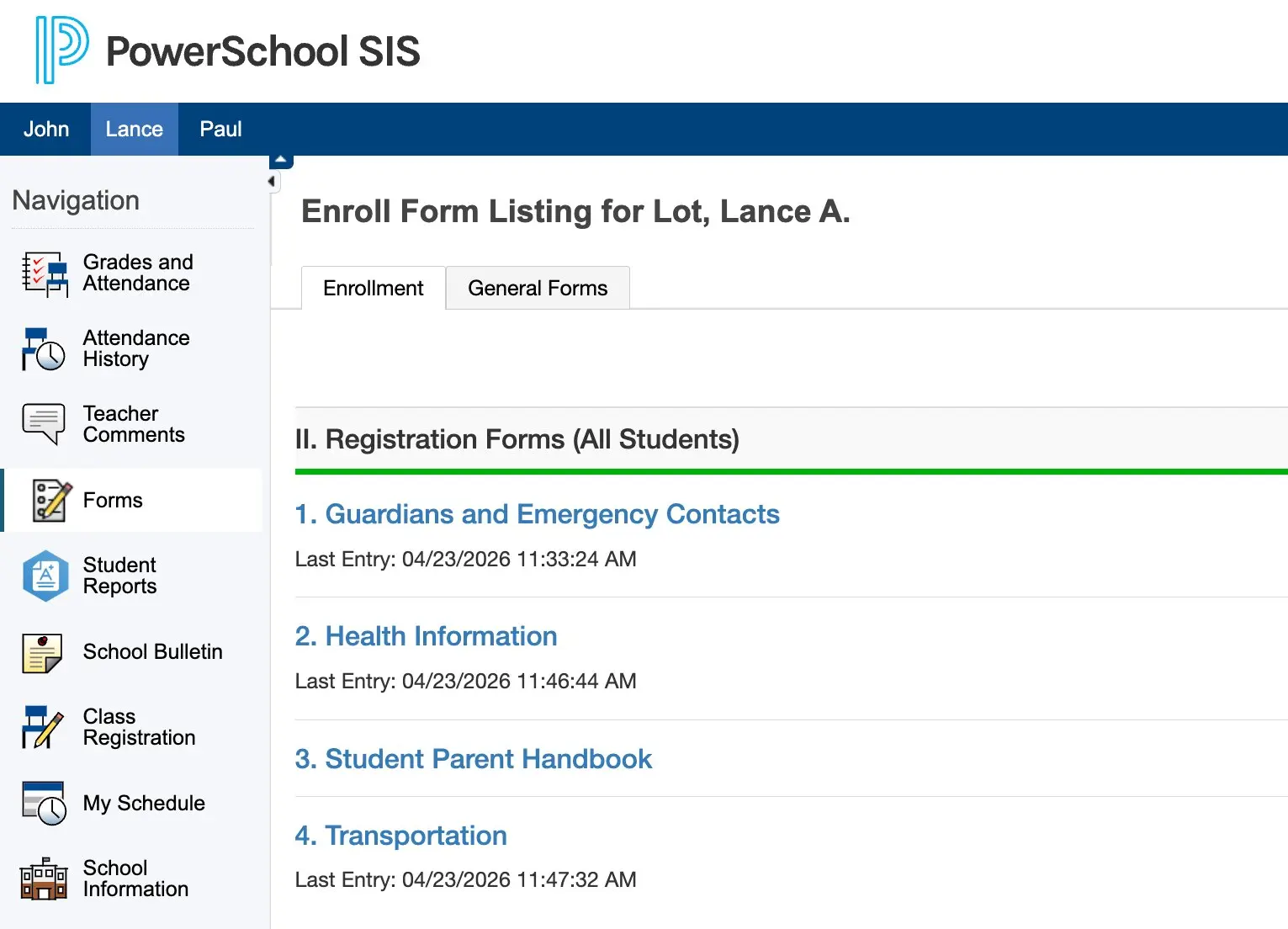
Please complete all forms listed in the "Registration Forms (All Students) section. You can open each form by clicking the blue hyperlink. Once you have completed the form, click submit.
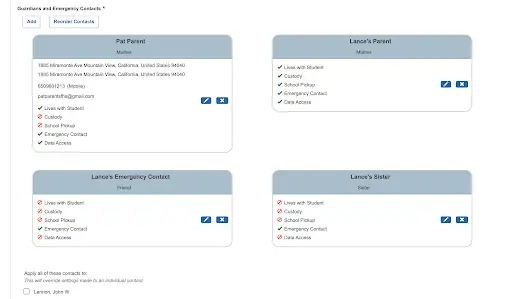
PLEASE NOTE: IT IS VERY IMPORTANT THAT YOU ADD EMERGENCY CONTACTS TO THE "Student-Guardian & Emergency Contacts: Form. Please see the requirements for adding these emergency contacts below:
- Mandatory Minimum: You must add a minimum of two (2) and up to four (4) individuals as emergency contacts who are not a parent/guardian.
- Authorized Pickup: By listing these individuals, you explicity authorize the school to contact them and grant them permission to pick up your student from school grounds.
- If you are adding an individual who is solely an emergency contact, please only check the box "emergency contact".
If you have multiple students at Saint Francis and would like to apply these contacts to all of your students, click the "Apply contacts" button at the bottom of the screen before you submit.
Step 7
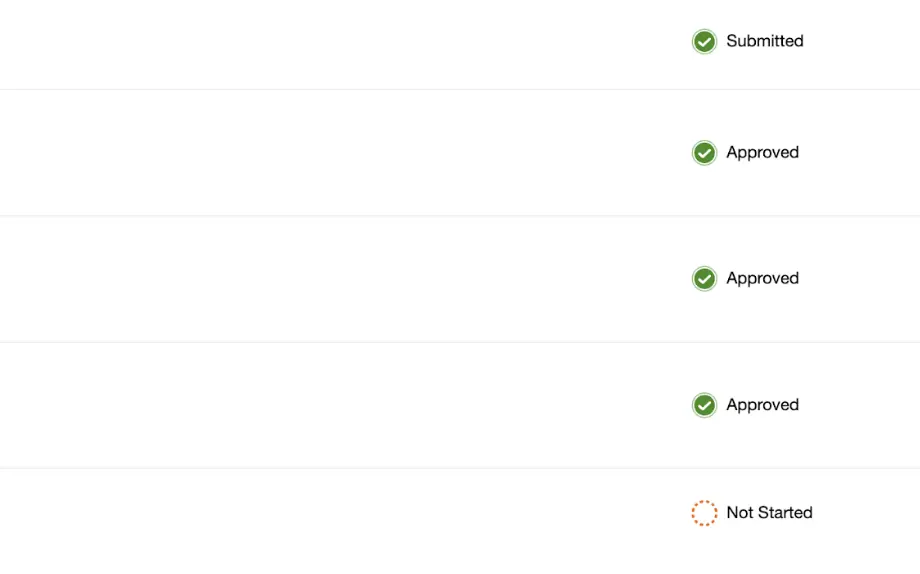
You can view the status of your forms in the right hand side on the forms screen.
Please make sure that all of your forms (with the exception of the new student medical forms) have the green check to indicate that they have been submitted. You can log in to PowerSchool at any time to see if these forms have been approved by the school.
How Can We Help?
As our school administration mentioned in previous correspondence, we are fully committed to ensuring that every student and family has access to Holy Cross education at Saint Francis. We ask that you contact us if you have any concerns about your non-refundable enrollment deposit or tuition payments, and please know that we are here to support you and your family.
|
|
|
|